Sustain
September 21, 2026
· 6 min read
Creating your first album

If you’ve got a folder of photos and no time to lay out a book by hand, this is the fast path. Sustain reads your photos, groups them into moments, picks the strongest shots, and arranges them into pages that flow — you just bring the pictures and make the final calls.
This guide walks you through your first album end to end: uploading, choosing a format, letting the AI build and polish it, and then making it yours in the editor. Give it about ten minutes and you’ll have a real book.
Before you start
You’ll need a set of photos and a Sustain account. There’s no software to install — everything happens in your browser. JPEG, PNG, HEIC/HEIF, TIFF, and WebP all work, and screenshots are fine too.
A good first album usually comes from one occasion or theme — a trip, a birthday, a year with the kids. You don’t have to hand-pick the “best” ones; part of the point is that Sustain sifts through everything and surfaces the keepers for you.
Step 1 — Start a new album
Open your library
Head to My Library (your /albums page). This is home base for every album you make.
Click “Create New Album”
Hit the Create New Album button — top-right, or the big button in the middle if this is your very first one. Sustain spins up a fresh, empty album and drops you straight into the editor, where a short setup wizard opens automatically.

Step 2 — Add your photos
The wizard opens on “Start with your photos.” Add as many as you like — Sustain builds the book from whatever you give it, and more photos just means more to choose from.
Pick a source
Upload from this device (drag-and-drop or Browse files), pull straight from Google Photos, or send them from your phone by scanning a QR code — handy when the pictures live on your camera roll.

Let them upload in the background
You don’t have to wait around. Once you’ve chosen your photos you can continue — they keep uploading in the background while you move on. The Continue button shows a running count of everything you’ve added.
Good to know
Your originals stay private — only you can see them. Sustain reads your photos to group similar moments, pick the strongest shots, and build a layout that flows.
Step 3 — Choose a format
Next, pick a shape for your book: A4 portrait or landscape, square, A5, or US Letter. This sets the proportions of every page, and you can change it later.
For page count, leave it on Auto and Sustain sizes the book to your photo count — the easy choice for a first album. When you’re ready, hit Place my album and it starts arranging everything.
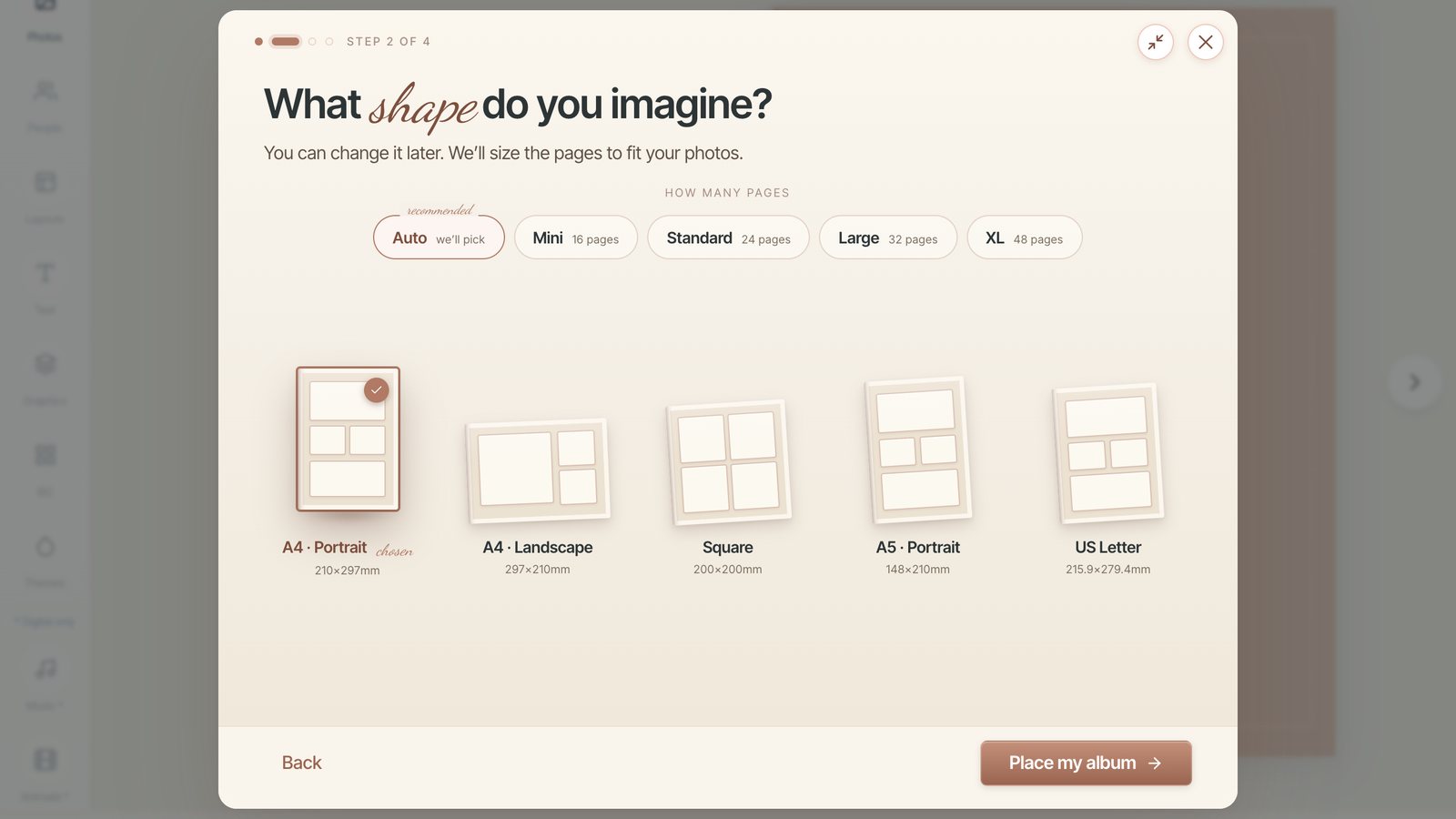
Step 4 — Let AI build and enhance it
Sustain lays your photos into a book in a few moments — you’ll see the pages come together — and then offers to take it further with AI Enhance. This is where the real magic happens, so say “Yes, enhance my album.”
Enhance reads each photo — its content, location, dates, and who’s in it — then removes duplicates, picks the best shots, groups your moments into chapters, writes captions, chooses a theme with decorations, and even generates a title.
Progress runs inside the AI Album Designer chat, through four stages — Upload, Analyze, Curate, Polish — with a percentage and a rough time remaining. A small album is a couple of minutes; a few hundred photos take longer. You can collapse the panel and keep browsing while it works, and Sustain can email you when it’s done.
Heads up
AI Enhance rebuilds the album from scratch, so it may drop near-duplicates, reorder pages, or pick a different theme than the quick first draft. That’s expected — it’s the polishing pass, and it tells you afterwards exactly what it dropped and why, so nothing disappears quietly. Prefer to arrange things yourself? Choose “I’ll do it later” and go straight to editing.
Step 5 — Make it yours in the editor
When Enhance finishes you land in the editor with your finished book, and the AI Album Designer chat opens with a recap of what it made — and under it, “Why I built it this way.” Open that for the reasoning: the chapters it split your photos into and the pages each one got, why it picked your cover, and the photos it left out, grouped by reason — near-duplicates, partial shots, everyday things like a receipt or a menu. Anything you want back, you can put back from there.
Then it asks. Sustain runs a short interview — a few questions, one at a time, about the calls it was least sure of: whether it read the occasion right, whether to order the album by date, by theme, or by who’s in the photos, whether the chapters are the right split, who the people are, and which cover to use. It only asks what it actually has something to ask about, so the list stays short. Answer one and the album rebuilds around your answer; skip it and it keeps what it built.
- Chat your way to changes. Ask the assistant in plain language — “make the cover title bigger,” “swap this photo,” “add a page for the hike.” It proposes the change and you approve or revert it.
- Rearrange by hand. Use the Tools, Photos, Layouts, and Themes tabs to swap photos, change a page’s layout, or try a different theme.
- Move through the book page by page, or step back to see full spreads.
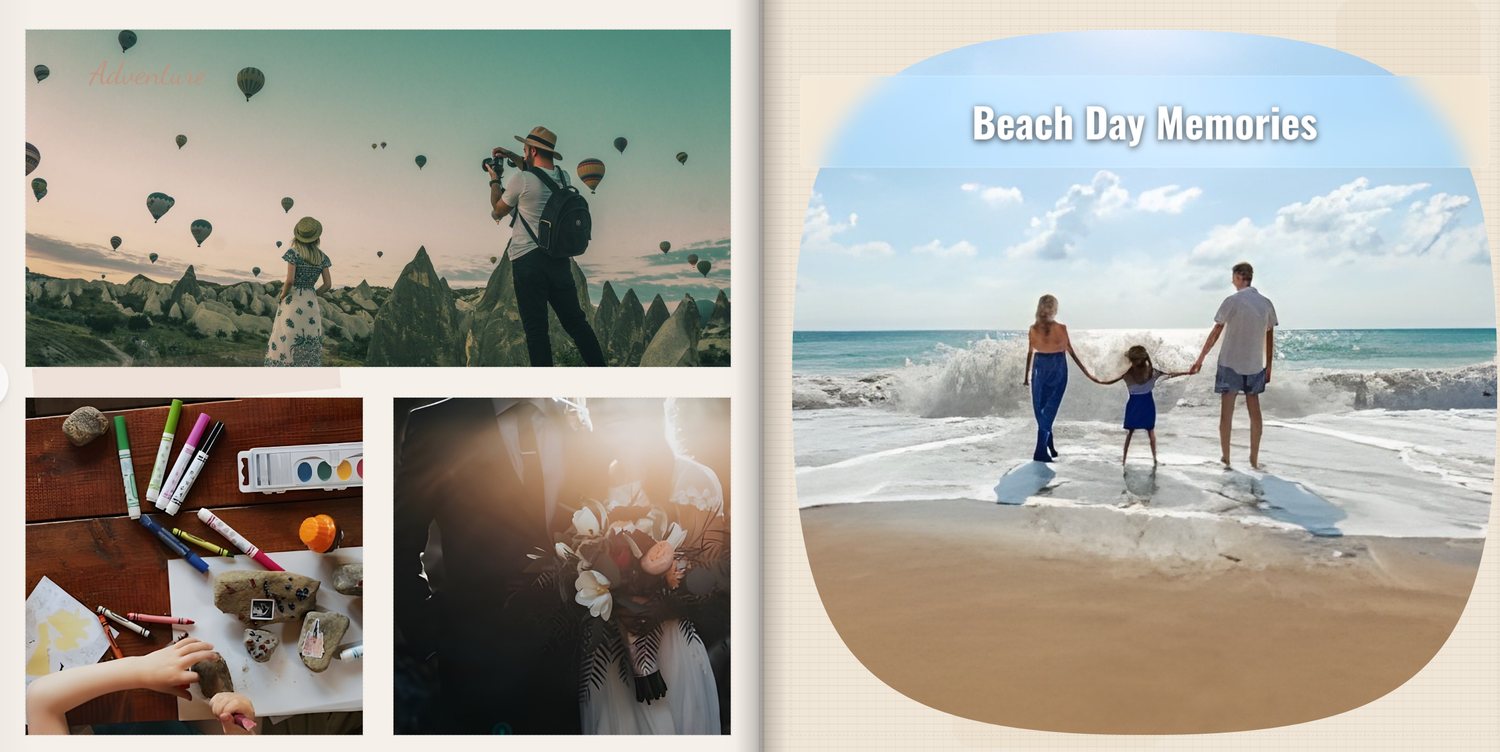
Step 6 — Share, print, or download
When it looks right, open Export Album. You can Download PDF, Order Print for a professionally bound photo book, or Download Video to get an MP4 slideshow of the album. You can also share a link so family can flip through it in the viewer.
And you’re not locked in — come back to My Library any time to keep editing, re-run Enhance, or start your next book.
Tips for a great first album
- Give it plenty of photos. Sustain is at its best when it has room to choose — don’t pre-filter down to a handful.
- Start with one story. A single trip or event makes for a tighter, better-flowing book than a grab-bag of everything.
- Answer the questions it asks. The short interview after Enhance is the fastest way to steer the whole book — one answer about ordering or chapters rebuilds it properly. Skipping is always fine; it keeps what it built.
- Nothing is permanent. Every AI change is one you approve, and your original photos are never altered.
Frequently asked questions
Ready to try it?
Create your first albumKeep reading
Editing your album: make every page yours
The AI gives you a finished draft — the editor is where you make it truly yours. Here’s everything you can change, panel by panel.
Using the AI chat: talk your album into shape
The fastest way to change your album is to ask. Here’s how to phrase requests so the AI Album Designer nails them the first time.
Sustain
© 2026
·
Album ideas·
Compare·
AI agents·
Learn·
FAQConnect your agent·
Terms·
Privacy·
Acceptable Use