Sustain
October 7, 2026
· 4 min read
Sustain finds the main subject of your album

Some albums are clearly about one person — a kid's birthday, a friend's graduation, a parent's visit. Sustain now notices when that's the case and checks with you once.
You stay in control the whole time. The check-in is a single question, and you can correct it any time.
When you build an album, Sustain looks at the faces that appear across the photos you've included. If one person shows up far more consistently than anyone else, Sustain treats them as the album's likely main subject.
How Sustain decides who the album is about
This isn't based on who appears most often overall in your library — it's about who dominates this specific album. A photo set from a birthday party will usually center on the birthday kid, even if other relatives appear in a few shots.
Sustain only makes this call when the signal is clear. If an album is genuinely a mix of people with no obvious main subject, it won't force a guess — it just leaves the album as you built it.
It only happens if you allowed face detection
Working out who an album is about means recognising faces, and Sustain will not do that unless you say so. Face detection is off until you turn it on — it is biometric data, so it is consent-first by design.
The ask appears in the enhance offer, before the build runs:
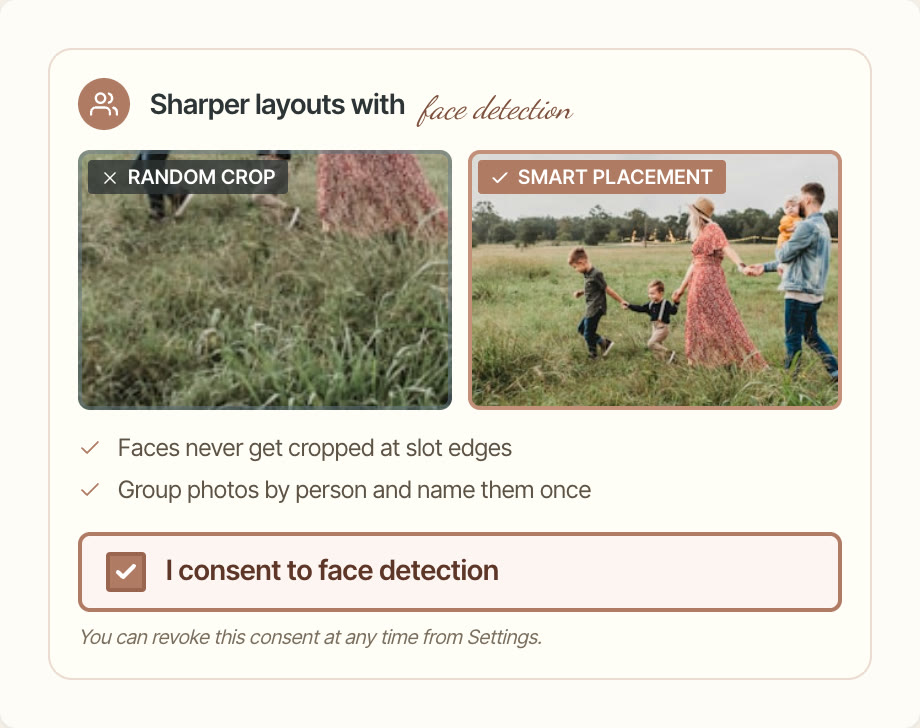
Leave it unticked and nothing in the rest of this post happens — no prompt, no guess, no card. The album is built without ever looking for people. You can turn it on later in Settings and run the enhance again, and you can revoke it the same way.
The one question it asks
Sustain shows you who it found
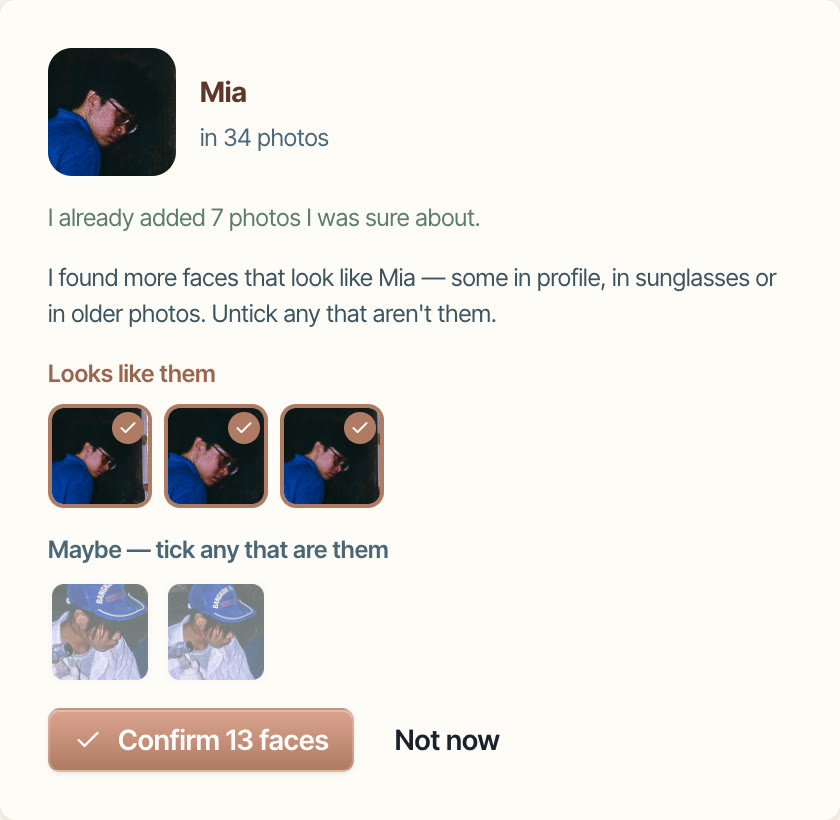
After the build, a card appears with a face, a name box, and how many photos they are in. Sustain has already worked out who the album is about — it is not asking you to confirm that.
You check the faces, not the verdict
"I found more faces that look like Mia — some in profile, in sunglasses or in older photos. Untick any that aren't them." Confident matches come pre-ticked under Looks like them; uncertain ones sit under Maybe — tick any that are them. Press and hold any face to see it larger. Then Confirm, None of these are them, or Not now — and naming them here lets titles and captions use the name.
What happens after you confirm
Confirming merges the faces you ticked into that person, and says so: "Done — 12 more faces are now Mia."
It then offers the follow-up that matters: "Titles and captions can now mention Mia — use ‘Redo album texts’ in the chat when you are ready." That is something you ask for, not something it does behind you.
If more than one person was found, Next moves on to them. Otherwise that is the end of it — the card does not come back for the same album.
Undo anytime
If Sustain got it wrong, correct it at any point — pick a different person as the main subject, or clear the guess entirely.
Any photos added through a chat request go into the album like any other photo, so you can remove them the normal way if one doesn't belong.
Frequently asked questions
Ready to try it?
Create your albumSustain
© 2026
·
Album ideas·
Compare·
AI agents·
Learn·
FAQConnect your agent·
Terms·
Privacy·
Acceptable Use