Sustain
November 1, 2026
· 4 min read
See why a photo didn’t make your album, and put it back
0:00 / 0:31
Upload 400 photos, get a 40-page album, and the obvious question is: what happened to the rest? Until recently the honest answer was a pile marked Available and no explanation.
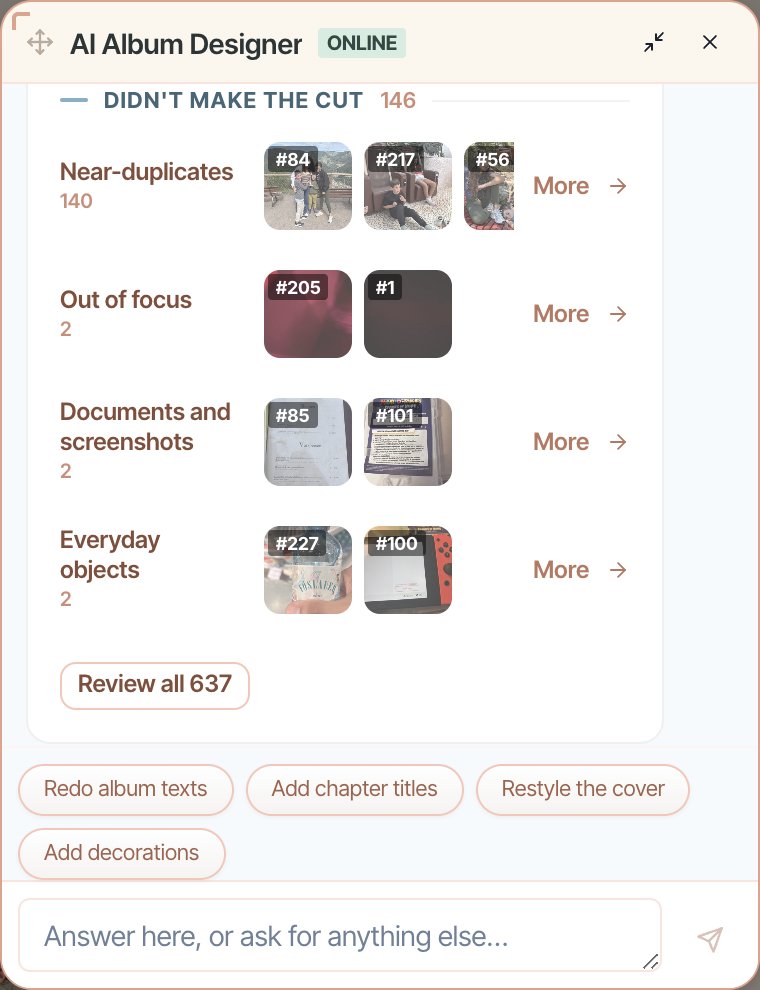
Now Sustain tells you. Every photo it left out is grouped by the reason it was left out, you can look at any of them full size, and you can put back as many as you want in one go.
Where to find it
When an album finishes building, the first message in the chat explains the build: How I split it up (the chapters), Why this cover, and Photos I left out. A line at the top gives the totals, for example 92 of 400 photos across 40 pages.
Each reason is one row with its label, a count, and a strip of the photos themselves. The count is the real total. If 308 photos didn’t fit the page count, the row says 308.
Two kinds of left out
The rows are split by what you will probably want to do about them.
Good ones that didn’t fit come first and stay open. These are photos with nothing wrong with them: the album ran out of pages (Didn’t fit the page count), or no page had a slot they suited (No page had room, Didn’t fit the leftover slots). This is where the photos you will want back usually are.
Didn’t make the cut comes underneath. These are the ones Sustain judged weak: Near-duplicates, Out of focus, Blank or blown out, Too small to print, Documents and screenshots, Partial shots, Everyday objects. Most people just glance at these to make sure nothing good was thrown out.
Near-duplicates show what was kept
A near-duplicate is shown next to the photo Sustain Kept this one instead, so you can check that it picked the better one of the pair. If it didn’t, put yours back.
Put photos back
Open a reason
Tap More on a row to open that whole group in the Photos drawer. The chips at the top switch between reasons without going back to the chat.

Look at the photo, not a thumbnail
Tap any photo to open it at full size. Use the arrows, or the arrow keys on your keyboard, to go through the rest of the group without closing it. For a near-duplicate, the photo it kept instead is shown underneath.

Pick the ones you want
Press Add to album on each one you want back. They collect in a Photos to add back list at the bottom of the chat, and you can remove any you change your mind about.
Add them all at once
Press Add 2 photos back, or however many you picked. Sustain adds them on new pages at the end of the album in a single request, instead of one request per photo.

When the page count is the reason
Sometimes most of your photos are missing simply because there weren’t enough pages. When that’s true for a large share of them, the top of Good ones that didn’t fit says so plainly, for example 40 pages fit 92 of your 400 photos, and offers the fix right there:
- Change page count: raise it in the album settings and rebuild to fit more in.
- Get more pages: if your plan’s page limit is what’s stopping you, a paid plan lifts it.
If only a few photos missed out because the last page was full, you won’t see this. More pages aren’t the answer to three photos.
Frequently asked questions
Ready to try it?
Open your albumKeep reading
Sustain finds the main subject of your album
Sustain guesses who an album is really about, asks you once, then uses that to answer chat requests and sharpen re-enhances.
Editing your album: make every page yours
The AI gives you a finished draft — the editor is where you make it truly yours. Here’s everything you can change, panel by panel.
Using the AI chat: talk your album into shape
The fastest way to change your album is to ask. Here’s how to phrase requests so the AI Album Designer nails them the first time.
Sustain
© 2026
·
Album ideas·
Compare·
AI agents·
Learn·
FAQ·
Connect your agent·
Terms·
Privacy·
Acceptable Use