Sustain
October 13, 2026
· 7 min read
Re-sort your whole album just by asking: three ways to sort

An album has an order, and the first order is rarely the one you want to keep. Maybe it should run oldest to newest. Maybe all the birthdays belong together, whatever year they were. Maybe you already know the chapters — Summers by the Sea, Birthday Wishes, Snow Days — and just want the photos to find their way into them.
You can now ask for any of those in the Sustain chat, in plain words, and the whole album is rebuilt around the answer: chapter pages, layouts, every photo. This post walks through three ways to sort, and then opens the hood on the interesting one — how photos get sorted into chapters you named, which the software has never seen before.
Here are three of them on one demo album: 40 photos of one girl, Maya, from age two to twenty-six. Every person in it is AI-generated.
Here are three ways to sort
They are not the only ones — you can also order an album by how old its main person is, for example — but these three cover most albums.
By date
“Put my album in date order, oldest photos first.” Photos are ordered by when they were taken, and a new chapter starts where the photos jump in time or place. Chapters are named after the city they were taken in, and a long trip is folded into at most seven chapters rather than one per day.
By theme
“Group the album by theme instead of by date.” Sustain reads what is in your photos and names the chapters itself — on the demo album, Children’s Birthdays, Family Moments, Travels, Outdoors, Portraits, Celebrations. Dates are ignored on purpose: a birthday at four and a birthday at sixteen land side by side.
Your own chapters
“Use my own chapters: Summers by the Sea, Birthday Wishes, Snow Days, Wild Places, Big Milestones, Postcards from Abroad — and sort the photos in.” Your titles are kept exactly as you typed them, in your order, in any language. Every photo is sorted into one of them, and you see the result before anything is built.
Nothing changes until you say so
A rebuild replaces the current pages, so the chat never starts one on its own. It first tells you what it is about to do, then stops and waits for your yes. If it ever tried to skip that step, the server would quietly turn the request back into a question.
Naming chapters is a step before that, and it only sorts — nothing is built yet. You get a card listing each chapter with how many photos went in, how many are worth a second look, and how many it was not sure about. You can open the photos, move any of them, rename a chapter (it keeps its photos), and only then tap Build it.
Move a photo to another chapter yourself
The sort is a first draft, and you have the last word on every photo. There are two ways to move one, before the build or after it.
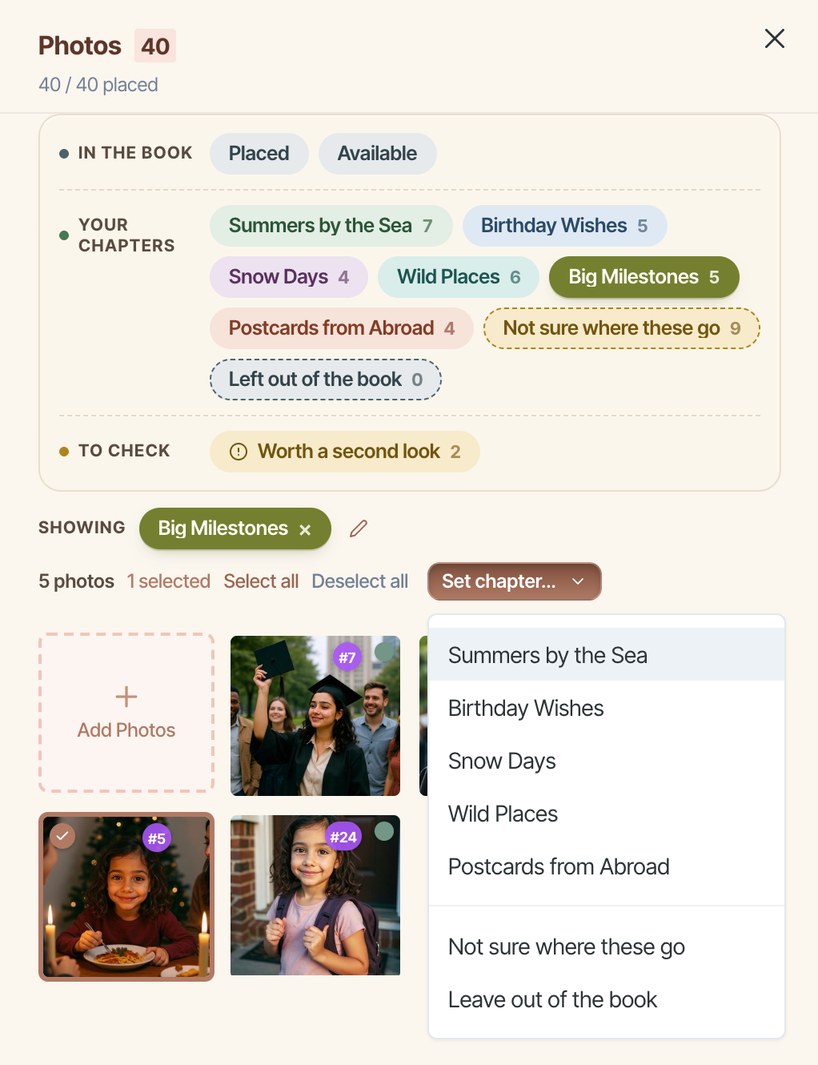
From the Photos drawer. Tap Review photos on the chapters card, or open Photos on the left. Under Your chapters there is a chip for every chapter, plus Not sure where these go and Left out of the book. Pick a chapter to see its photos, select one or several, and choose Set chapter… — another chapter, Not sure, or Leave out of the book. When you have selected a single photo that nearly went somewhere else, that chapter is offered first, marked Also fits. The Worth a second look chip shows only the photos where two chapters were close, which is usually where the mistakes are.
In the chat. Every photo carries a number badge, so you can just say it: “Move photo #5 to Snow Days”, “Put #12 and #14 in Postcards from Abroad”, or “Leave #31 out of the book.”
Either way, a photo you place yourself is pinned: later sorts never move it, and the next build puts it on that chapter’s pages first. Moving photos changes the plan, not the pages you already have — build again to see it in the book.
Under the hood: how photos find your chapters
First, a detail that surprises people: the sorting never looks at your pixels. When a photo is analysed, a vision model writes a sentence or two about it — “a little girl building a sandcastle with a red bucket on a sunny beach” — and face detection, if you allowed it, notes roughly who is in it. Everything after that works from those words, the date and place the camera recorded, and a numeric fingerprint of how each photo looks.
Then the photos go through a ladder of checks, surest first. A photo leaves the ladder at the first rung that is confident about it:
- Dates you stated. Say “Paris, 3–9 August 2009” and every photo with a real camera date in that window goes straight in, no guessing. It works the other way too: a photo dated outside a chapter’s dates can never be put into it, however well its description matches.
- Places. A chapter called Paris or Innsbruck & Tyrol is matched against the place names the photos were taken in. If two chapters both match, it stays out of it.
- One question per photo, per chapter. For every photo and every chapter, a small model is asked a single yes-or-no question: does the photo described here belong in “Snow Days”? The answer comes back as a probability. A photo goes into its best chapter when that is at least 60% likely — or, when nothing is that strong, when one chapter is still clearly ahead of the others. (That second rule exists because of a real album: a Grandma’s 90th chapter never scored above 54% on any photo, but on the right photos it was always the top answer.)
- Your timeline. If most photos have dates and your chapters run in order, whole days are placed together, so one stray description cannot pull a single photo out of its afternoon. Chapters you mark as any time float free; chapters in order are bound by it.
- The same people. If nearly everyone in a group of photos already landed in one chapter, a photo of those same people follows them.
- Look-alikes. Finally, a photo goes where its closest look-alikes went — but only when at least three of its five nearest neighbours agree.
Whatever is still undecided goes to Not sure — never dropped, and never forced. The fallback model is told in so many words that a wrong chapter is worse than “Not sure”. On the demo album, 31 of the 40 photos were sorted and 9 waited for a person to decide.
Then the book is built around your chapters
When you tap Build it, each chapter gets pages in proportion to how much it has worth showing, not simply how many photos it has. Every photo carries an interest score from its description — a mundane shot counts for a tenth of a compelling one — so seven sea photos with five strong ones earn more space than seven near-identical ones. Every chapter gets at least one page, and a chapter never gets more pages than it can fill.
Inside a chapter the photos run in date order. Anything you placed yourself goes first and is never second-guessed, even by duplicate removal. Photos still in Not sure are not thrown away either: they become a More photos chapter at the end, for you to move or remove.
And the chapters stick. Ask for a fresh rebuild later without naming an order, and it builds from your chapters again. Add photos afterwards, and the new ones are sorted in before the next build.
How themes are found
Sorting by theme works from the same descriptions, in two passes. First the model reads a sample of them — the most common tags plus up to sixty descriptions spread across the album — and names between two and twelve chapters by subject or kind of occasion, from what is actually there. Then it places every photo into one of those chapters, a hundred and twenty at a time, without seeing any dates.
If too few photos have been described yet, or the photos refuse to split into more than one theme, it says so and keeps date order rather than inventing chapters.
Tips for naming chapters
Give a date when you know one — even a rough “summer 2019” rules photos in and out of a chapter more surely than any description can. Say whether the chapters run in order. Name places by their real names. And open the photos marked to check: those are the ones where two chapters were close, and the Photos drawer shows the runner-up as “Also fits”.
Try this in the chat
Use my own chapters: Summers by the Sea, Birthday Wishes, Snow Days, Wild Places, Big Milestones, Postcards from Abroad. They can go in any order. Sort the photos in and show me before you build anything.
Frequently asked questions
Ready to try it?
Try it on your albumKeep reading
Using the AI chat: talk your album into shape
The fastest way to change your album is to ask. Here’s how to phrase requests so the AI Album Designer nails them the first time.
Sustain finds the main subject of your album
Sustain guesses who an album is really about, asks you once, then uses that to answer chat requests and sharpen re-enhances.
Sustain
© 2026
·
Album ideas·
Compare·
AI agents·
Learn·
FAQConnect your agent·
Terms·
Privacy·
Acceptable Use